Setting up your AI Coding Environment for Scripting Meteorological Plots - Part 1
If you read my post on “Creating Custom Model Images with Claude Code - No Coding Experience Required”, you may have wanted to jump at the chance of trying your hand at creating your own model content. Toward the end of the blog post, you reached the dreaded A Few Honest Caveats and thought I’d leave you hanging? Nah.
“Setting up your environment” sounds like developer talk - and it kind of is. This diagram serves as a high-level illustration of the technology stack used in a typical AI development workflow:
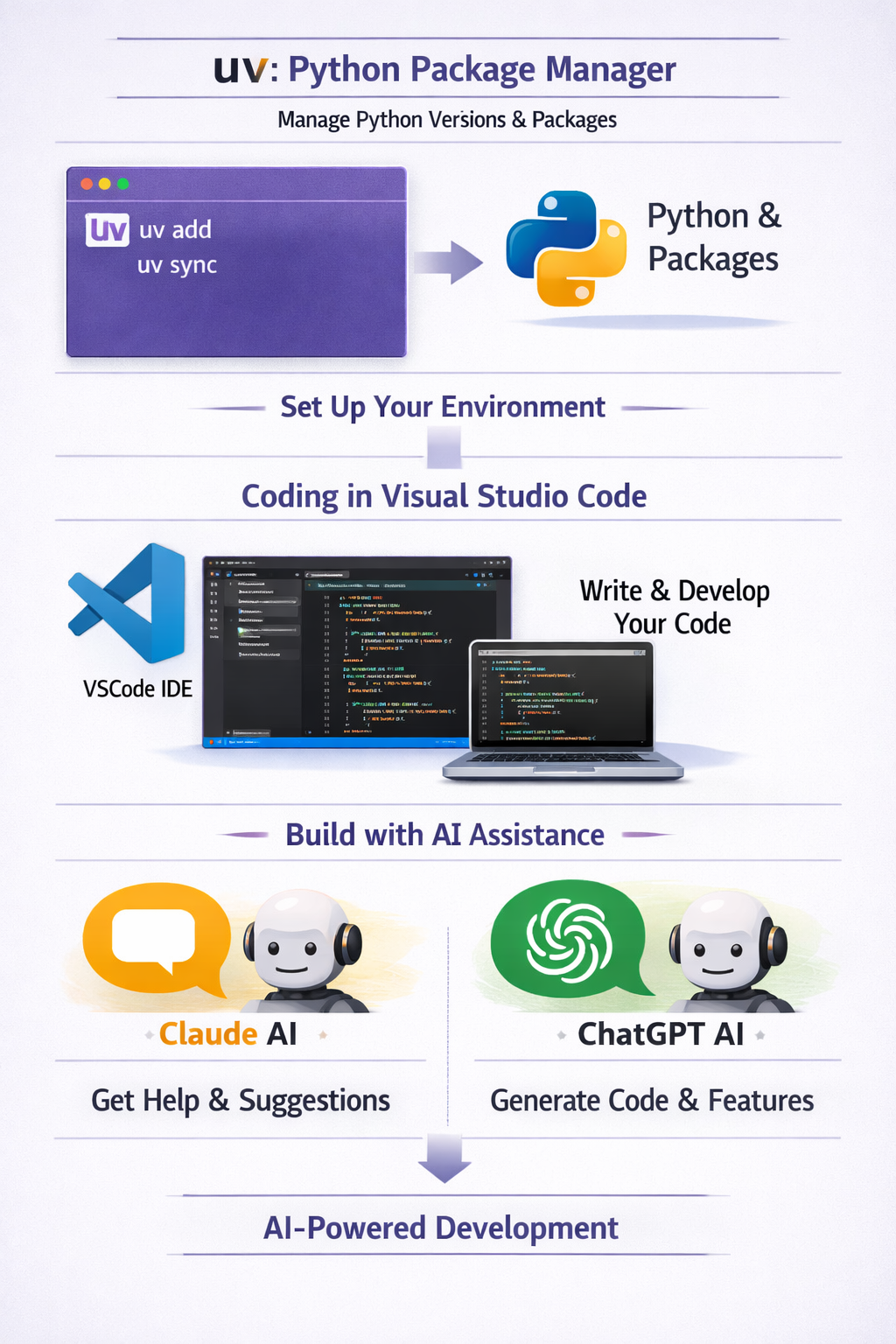
There are many ways of doing it, but here’s a blueprint that works for me.
Installation of Tooling
There are several out there, like Sublime Text, Notepad++, Visual Studio Code, and Cursor.
I’d recommend installing Visual Studio Code, unless you’re familiar with one of the others and prefer it instead.
Next, we need to have something called a runtime. It’s another fancy-sounding name, but it’s just the name for something that runs our code or computer program (hence the name, runtime). In this case, we need the python runtime.
Python has libraries. Think of these as specialized kits to solve specific problems. There are many libraries that come with python, called the standard library, and others that developers create all over the world and share that are often referred to as open source libraries.
There is a relatively new tool called uv that lets you install python and libraries. Ultimately, we’re going to have Claude do the heavy lifting for us, but we need the basic tooling installed.
Once you’ve installed uv per the instructions above, open Terminal in (macOS) or PowerShell (Windows) and type:
uv --version
Finally, we need Claude Code. Follow step one of the Quickstart Guide to get it installed. You need a Claude Code Pro Subscription. Yes, it costs a little bit and, no, I do not work for Anthropic.
Using one tool facilitates future blog posts, but another popular option is CodeEx from ChatGPT should you prefer it. You can cancel either anytime if you aren’t using them.
What’s Next?
We’ll pick up with getting Claude Code configured within Visual Studio Code and writing your first prompt — and actually running it — in the posts that follow.